

HandyBar
Explore HandyBar’s Bar layout.
This demo uses the Bar layout. Both Bar and Dock include Launcher, Spaces, and components: Stash, Clock, and Performance Monitor.
14-day trial
Try every feature before you buy.
Download HandyBar
Version 26.10.2 · macOS 26 or later · Apple silicon
Choose a window in the demo Bar to explore it. Use the HandyBar link above to see both layouts.
Choose your license
One-time purchase. Keep using HandyBar for as long as you like.
2 years of updates
Every release published in the next two years is yours to keep.
1 Mac
US$9one-time purchase
- One active Mac at a time
3 Macs
US$14one-time purchase
- Up to 3 active Macs
Lifetime updates
Every future HandyBar release is included.
1 Mac
US$15one-time purchase
- One active Mac at a time
3 Macs
US$20one-time purchase
- Up to 3 active Macs
What happens after two years?
Keep using the versions you already have. A release published later needs a new license at the price available then.
Local by design
Privacy details
Your work stays where it is.
HandyBar uses Accessibility to find and switch windows and respond to your shortcuts. It does not upload document contents, window titles, keyboard input, or the Accessibility tree.
Prices are in USD. Tax is shown at checkout. No subscription.
Your windows, on each display.
Each Bar shows the current Space’s windows on its display, with shortcuts to windows on other Spaces. Choose a window to bring it forward.

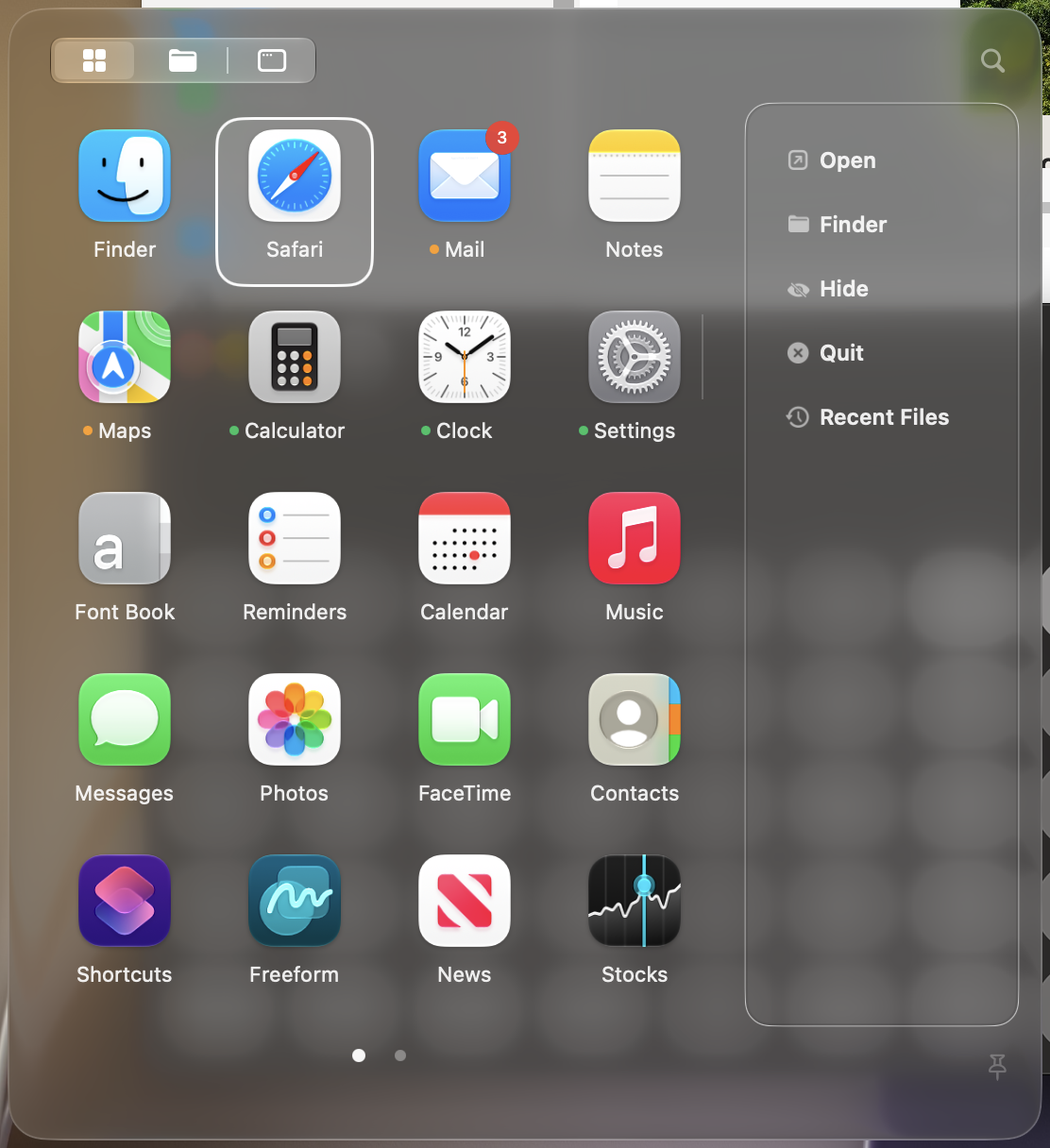
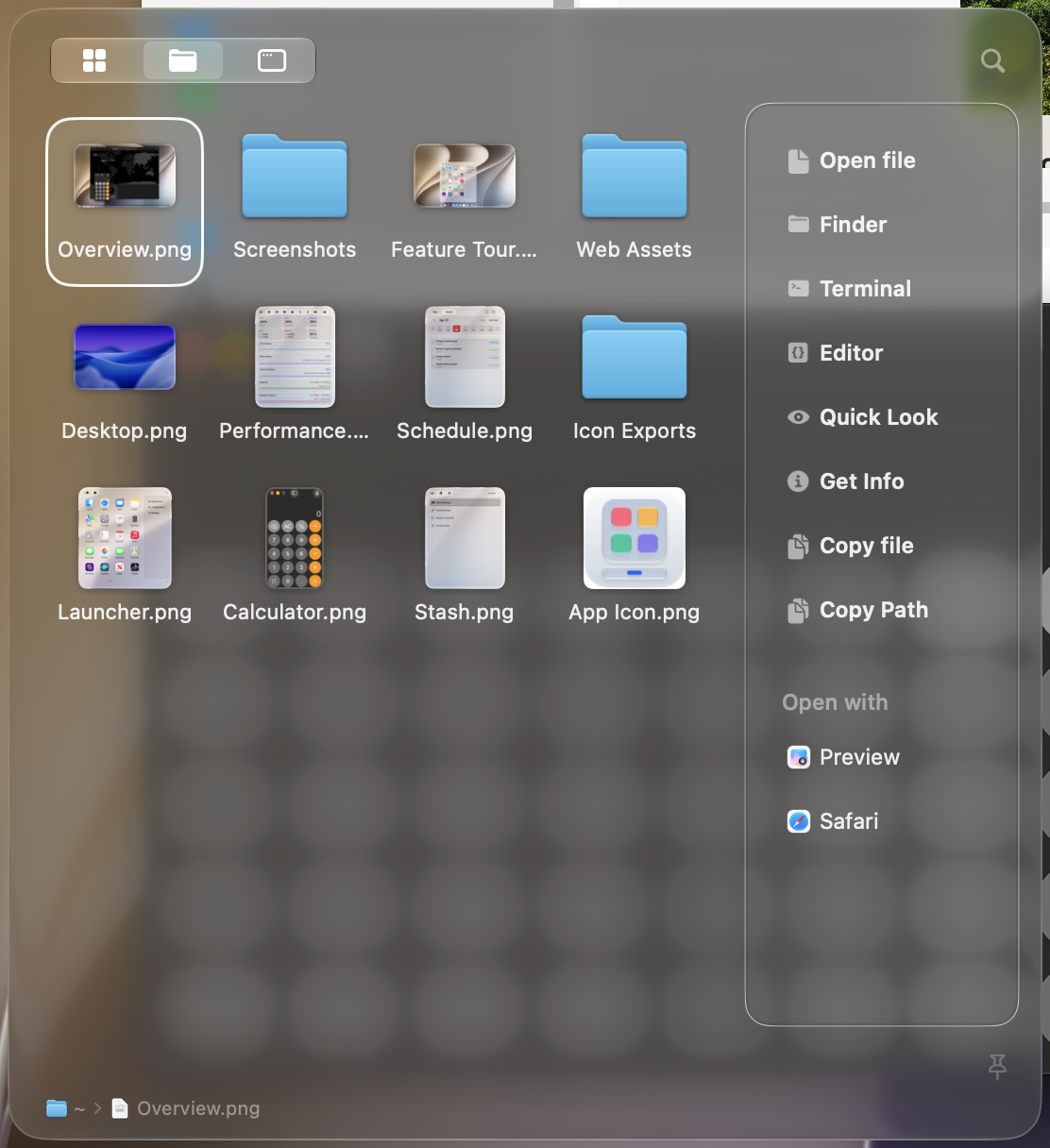
Find the app or file you need.
Open the same Launcher from the Bar or beside the system Dock. Search installed apps, recent items, and the folders you choose.
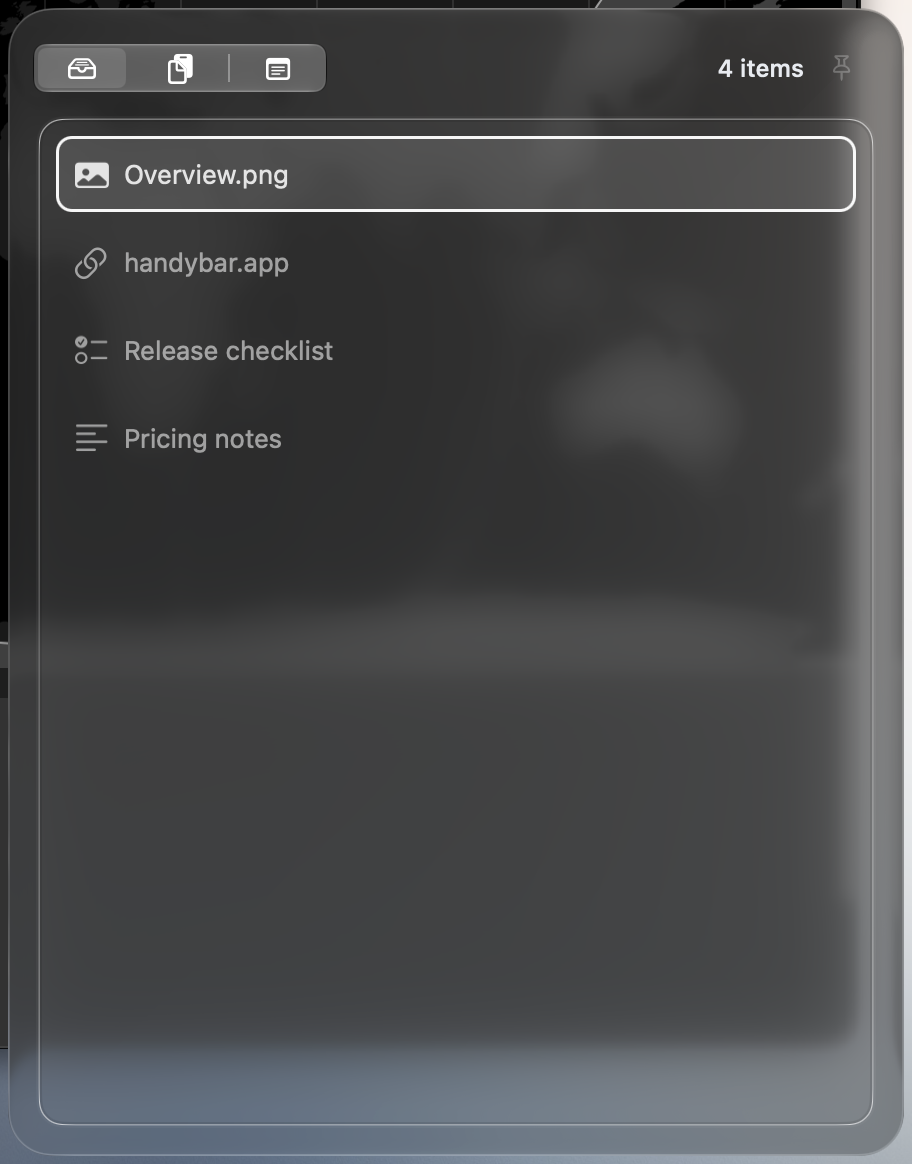
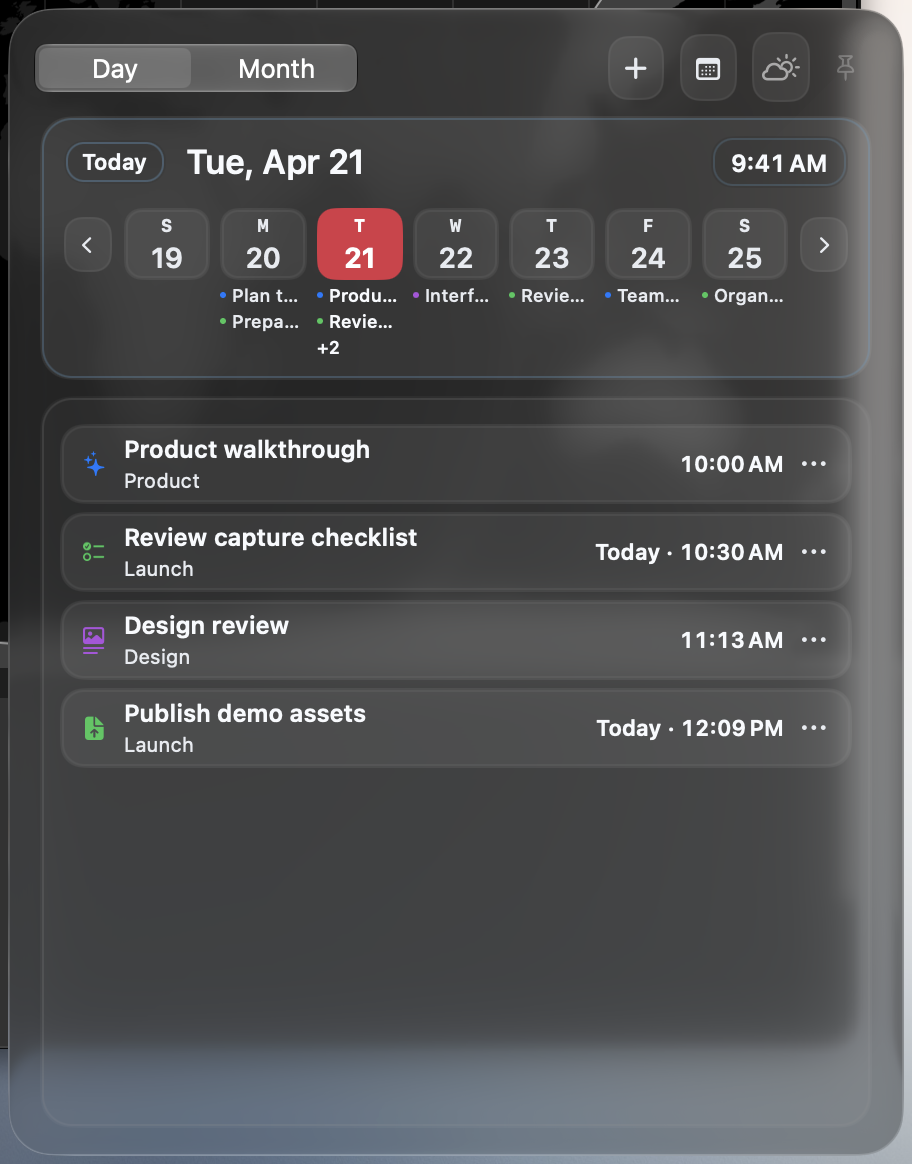
Stash, Clock, and Performance Monitor.
Choose which components to show in Settings. Open them from the Bar or beside the system Dock.
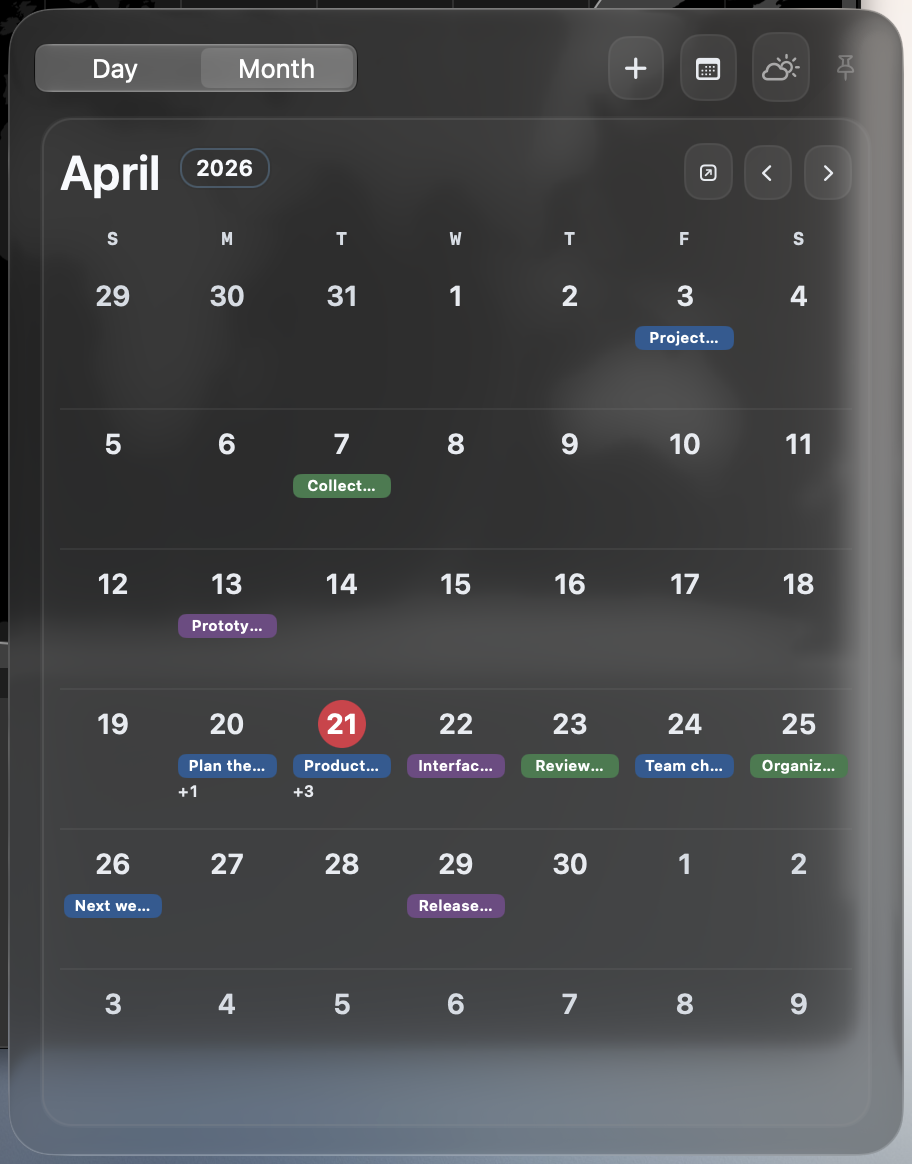
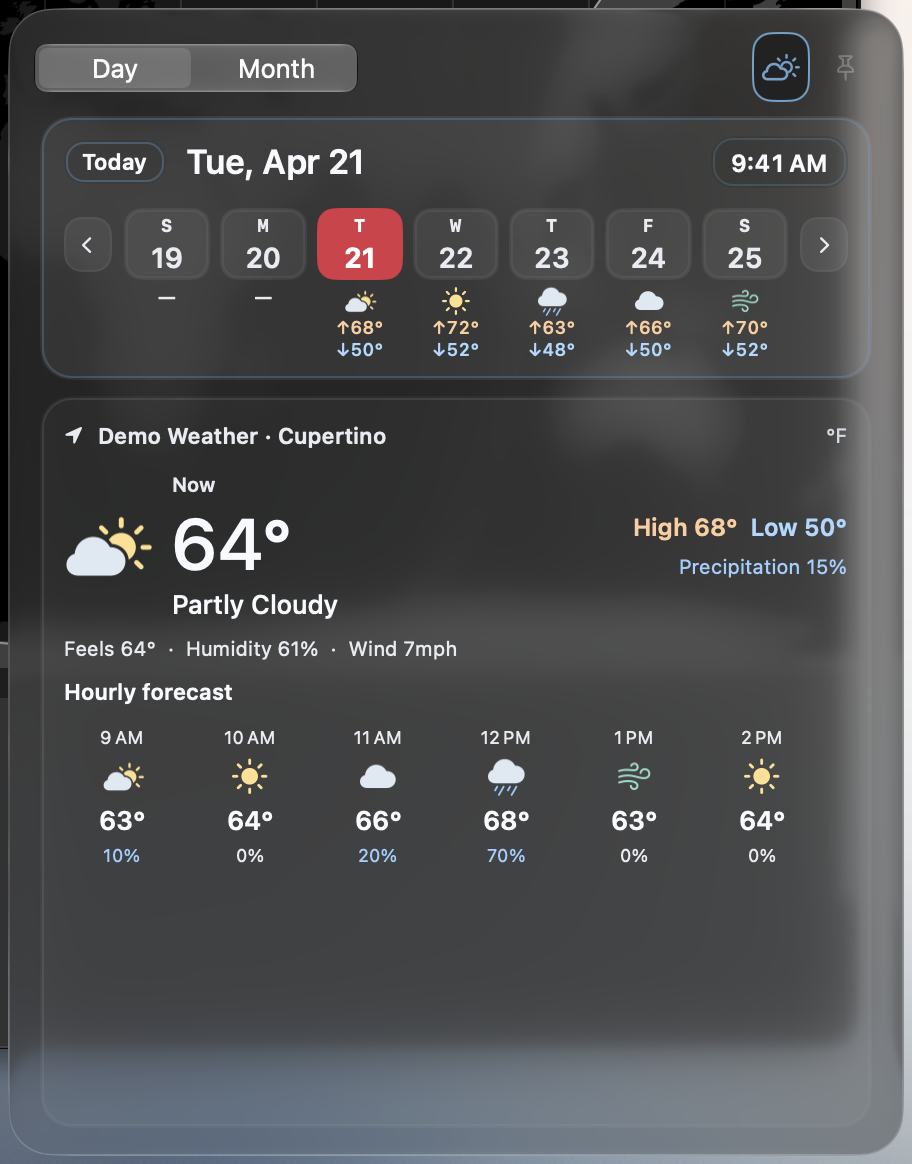
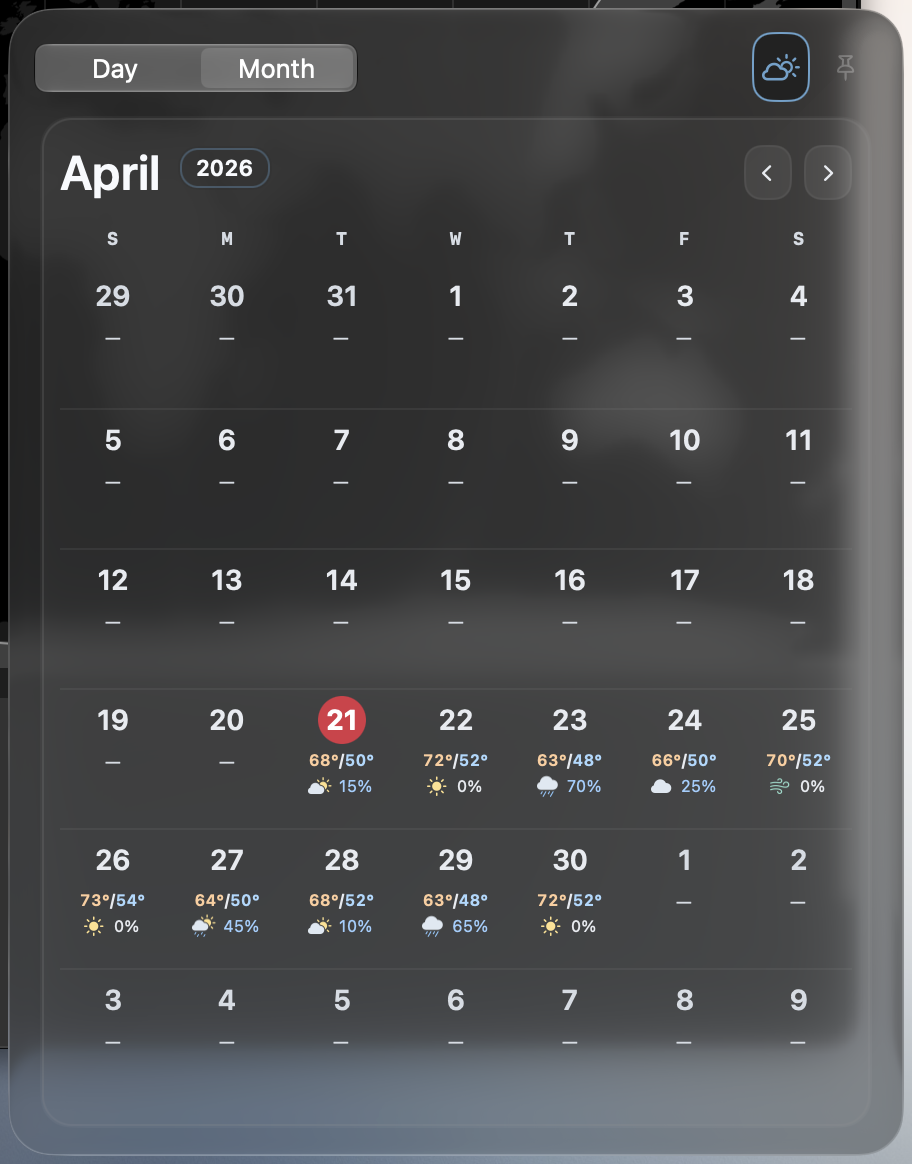
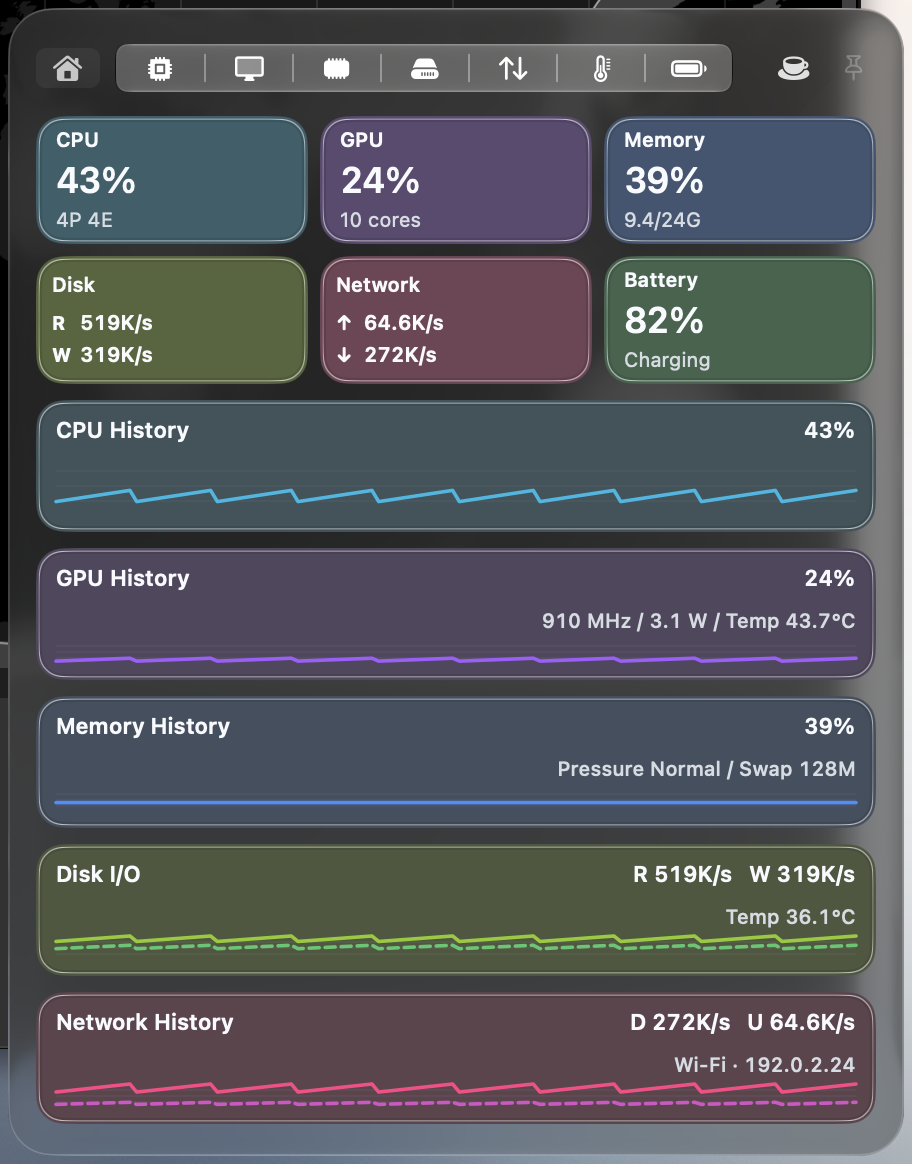
Performance Monitor detailStart with Overview, then explore CPU, GPU, memory, disk, network, thermal, and battery details.
Clock detailCheck Calendar events, Reminders, and weather in Day or Month view.
Stash detailDrop in a file, link, image, or piece of text. Clipboard history and a pinned note stay close by.